Creating professional videos used to require cameras, actors, editors, and hours of shooting and production. In 2026, HeyGen changes that completely. With this AI video generator, you simply write a script, choose an avatar, and your video is ready within minutes, complete with a lifelike presenter speaking naturally on screen. This HeyGen Review dives into how the HeyGen AI video generator works and how you can turn text or images into polished videos. With a casual, friendly tone, we’ll walk you through the steps and features that make HeyGen shine, including the new Agent Mode and Google’s Veo 3 model.
HeyGen Review: Overview & Key Features
HeyGen is an all-in-one AI video generator that simplifies video creation. It supports thousands of AI avatars and multiple languages, which makes this platform a versatile text-to-video AI tool. In practice, you can input a full script and HeyGen’s AI handles everything, choosing visuals, voiceovers, and avatars to produce a final video.
The platform even promises “complete videos from a script” with high-quality 1080p or 4K output. In short, HeyGen lets you create professional, AI generated videos without any camera or actors, and the results look remarkably human.
Key features of HeyGen include:
Avatars and Voice
The users can choose from 1100+ stock avatars or create a custom one. HeyGen’s avatars use consented actor data and deliver natural facial expressions and lip sync. You can clone voices or pick from many AI voices in different styles.
Multilingual Support
Record in over 175 languages. There’s even a Video Translate feature (heygen video translate) for automatic dubbing, so you can localize content with synced lip movement.
Deepfake/Face Swap
HeyGen includes a free deepfake generator. You can swap faces in videos or turn a photo into a talking video. It emphasizes realism (and ethical use) by mapping facial movements and expressions for believable results.
Creative Assistance
The new Video Agent (Agent Mode) is like having a creative partner. Describe your video idea, and HeyGen’s agent drafts a complete storyboard (script, scenes, graphics) for you. You can refine this blueprint step by step before the final render.
Editing Flexibility
Even after the AI generates the video, you can tweak text, timing, graphics and more in seconds. Every element stays editable, so small changes don’t require a full re-render.
Security and Trust
HeyGen stresses ethical AI and data privacy. It’s used by many big companies (over 1,000,000 developers and firms) and meets standards like GDPR and SOC 2. That means your content and data are kept secure and private.
How to Generate AI Videos Using HeyGen AI
Creating AI-generated videos with HeyGen is surprisingly simple, even if you have never edited a video before. Follow these steps to get started.
Step 1: Sign in to HeyGen
Visit the HeyGen website or open the HeyGen mobile app (iOS or Android) and log into your account. The dashboard is clean, modern, beginner-friendly and easy to navigate.
Step 2: Start a New Project
From the dashboard, click Create inside AI Studio. This opens HeyGen’s main video editor, where all video creation happens.
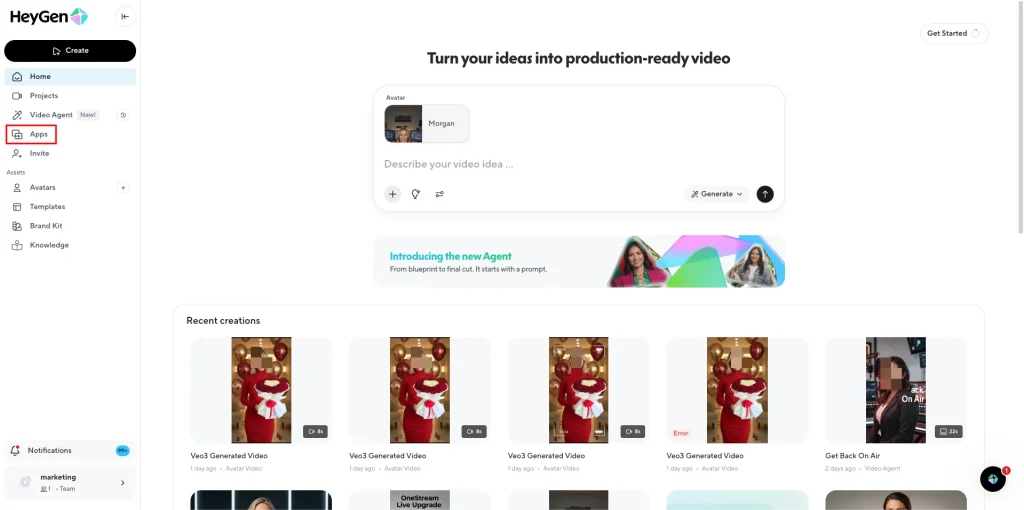
At this stage, it’s important to note that HeyGen offers six different creation modes for generating AI videos, including avatars, text-to-video, agents, and advanced AI models.
In this guide, we will focus on the two most powerful and popular options:
- Video Agent (Agent Mode)
- Google’s Veo 3 (Business plan users)
Step-by-Step: Generating Videos with HeyGen
Method 1 – Using HeyGen’s Video Agent (Agent Mode)
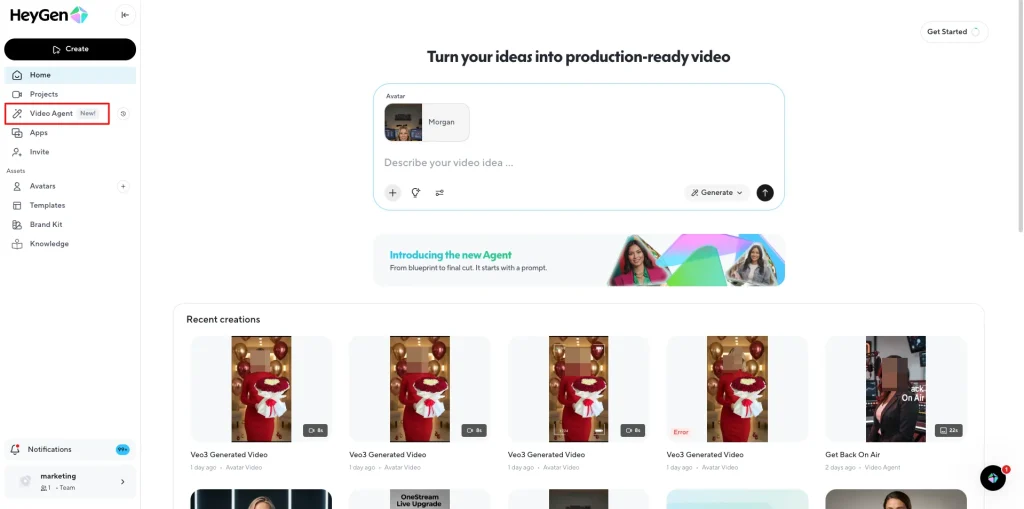
Step 1. Switch to Agent Mode
In AI Studio, click on the Video Agent icon or option. Agent Mode is HeyGen’s new AI assistant. It asks in plain English what kind of video you want.
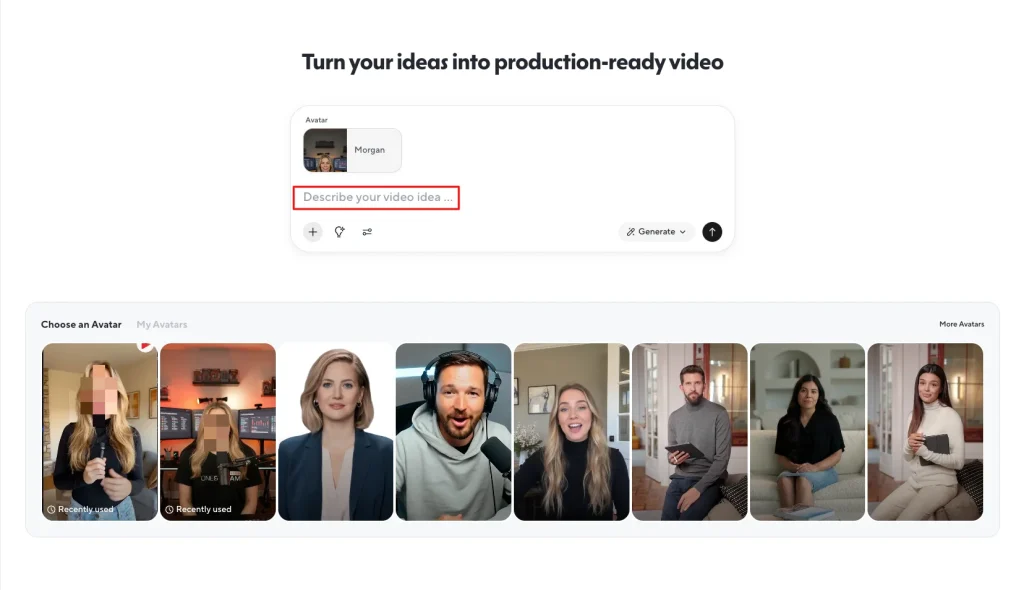
Step 2: Describe your video
Type a simple brief or paste your script. For example: “A short marketing explainer with an energetic avatar introducing our product.” The Agent reads this prompt.
Step 3: Review the AI blueprint
HeyGen’s agent then auto-generates a full outline: it writes the script, selects visuals, and even adds animations and B-roll. It shows you the plan scene by scene before any final rendering. You can tweak it by giving feedback like “make scene 2 shorter” or “change background image here.”
Step 4: Customize scenes
Each scene in the blueprint has an avatar delivering the script, plus contextual graphics. You can replace the avatar (choose from stock avatars or your custom one) and swap images or video clips. If you have access, you can also enable Google’s Veo 3 model at this point (see next method).
Step 5: Finalize the video
Once happy, click Generate. HeyGen’s AI merges all elements into a polished video with voiceover, captions, and animations. It usually renders in a few minutes, faster in higher plans. The output is studio-quality – you see why users say “no camera needed”!
Step 6: Edit after generation. If something needs tweaking, you can edit text, timing, colors, etc. right in AI Studio. All edits apply instantly without re-rendering.
Method 2 – Using Google’s Veo 3 (VEO3)
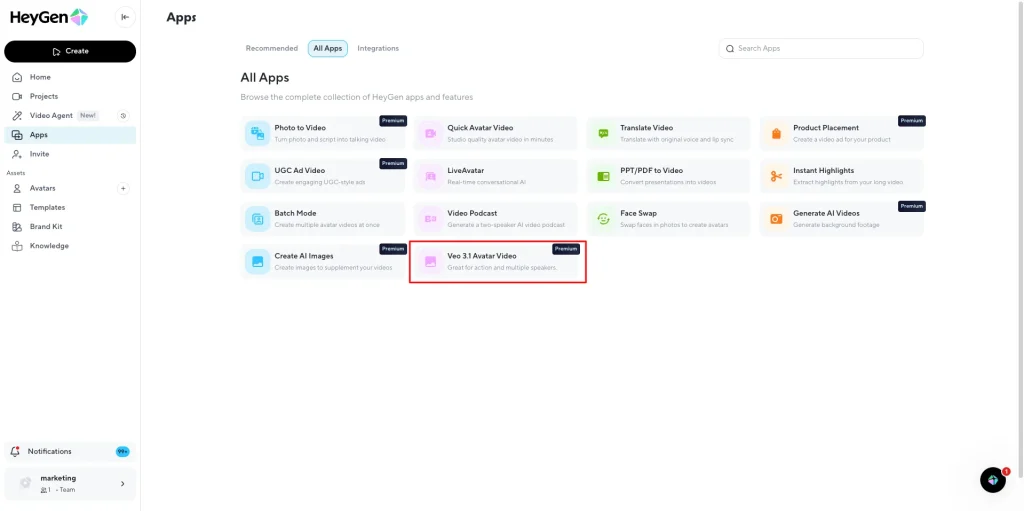
If you’re on HeyGen’s Business plan, you can try the Veo 3 method. Veo 3 is Google’s latest AI video model, now integrated into HeyGen for enterprises. Here’s how to use it:
Step 1: Enable Veo 3 model
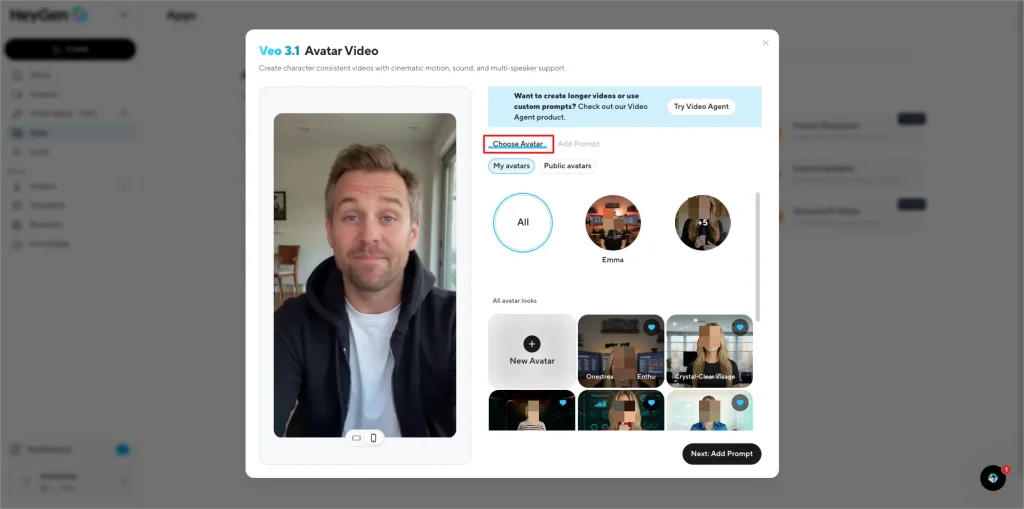
In your HeyGen project settings or when selecting an AI model, choose Veo 3. Veo 3 can take your text (or even an image prompt) and generate cinematic clips with synchronized audio.
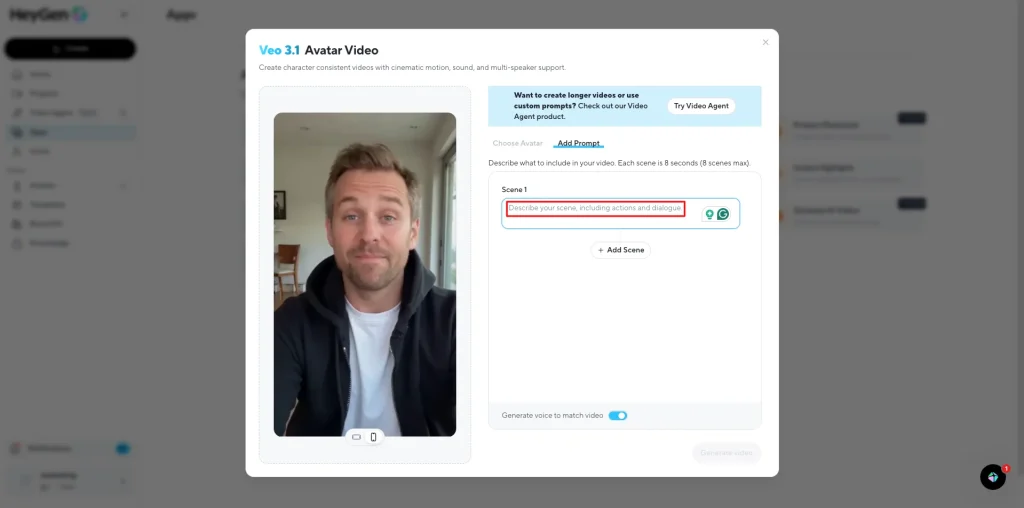
Step 2: Input content
Similar to Agent Mode, you provide text or an image. Veo 3 excels at creating natural visuals from such input. You can also use the Scriptwriter feature to auto-generate text and feed it to Veo 3.
Step 3: Review and refine
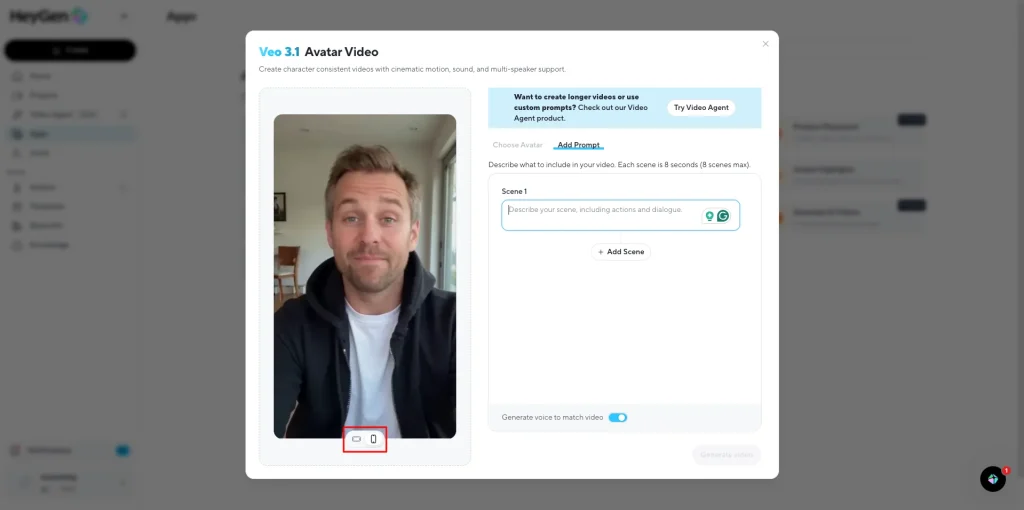
Veo 3 will output scenes and you can review them before finalizing. Because Veo 3 is geared for high-quality generation, the visuals can be more dynamic or cinematic than the standard avatar setup.
Step 4: Render the final video
Once satisfied, generate the video. Yo will get a seamless result where your script is spoken by an AI voice with realistic background scenes.
Using Veo 3 is essentially an alternate “AI engine” behind HeyGen. It’s great for richer visuals (and it is included in HeyGen’s Business plan alongside Avatar IV and other models). For most users, the regular Video Agent mode is enough. But if you’re building premium content, Veo 3 can elevate the quality.
Also Read: Sintra AI Review
Additional Tips
- Choose a Template or Start Fresh: HeyGen offers many templates. These provide pre-built scenes and styles. For a quick project, pick one and then just replace the text and avatar.
- Customize the Avatar: To change the avatar character, select a scene, click Replace Avatar, and pick or upload a photo to create a custom AI avatar.
- Add Subtitles and Music: You can add background music from HeyGen’s library. The auto-generated caption track (or Subtitle Generator) ensures accessibility and engagement.
- Generate AI Voiceover: Click Generate in the script panel to have HeyGen speak your text in a natural AI voice. You can even record or upload your own audio for a hybrid approach.
- Preview Changes: At any point, hit preview to watch your video draft. This lets you iteratively improve pacing or wording before final render.
Pricing & Plans (HeyGen Pricing in 2026)
HeyGen offers a free plan and paid tiers, so you can try it risk-free. Here’s a quick Heygen AI pricing comparison:
Plan | Price (monthly) | Video Allowance/Quality | Key Features |
Free | $0 | 3 videos/mo, up to 3 min each, 720p | 500+ stock avatars; 30+ languages; basic templates |
Creator | $29 | Unlimited videos, up to 30 min, 1080p | Includes voice cloning, Look Packs, watermark removal; 175+ languages |
Pro | $99 | Unlimited videos, up to 30 min, 4K | 10× more credits; priority features; early access to new tools |
Business | $149 (+$20/seat) | Unlimited videos, up to 60 min, 4K | 5 custom avatars; team collaboration; SSO, workspace, advanced controls |
You can use HeyGen’s free plan to experiment with text to video AI free online – it lets you make up to three short videos without payment. The Creator plan adds HD and advanced features, while Pro unlocks 4K and more capacity. Business (or Enterprise) is built for teams (with shared assets and workspace). As the official site notes, the free tier is a no-credit-card intro, and going paid gives you unlimited video creation.
In practice, most creators start free, then upgrade if they need high resolution or longer videos. The pricing is competitive with other AI video tools. And remember: “you can use HeyGen for free” up to 3 videos a month, making it a top choice among free online AI video generators.
Conclusion
HeyGen in 2026 stands out as a powerful yet easy-to-use AI video creation tool. This HeyGen Review shows that whether you’re a solo creator or a corporate team, you can create AI-generated videos quickly. The unique Agent Mode (creative AI assistant) and support for Google’s Veo 3 model give you advanced methods to produce lifelike videos from just text or images.
In practice, generating a video is as simple as starting a project, switching on Agent Mode, and typing your ideas. The AI then does the heavy lifting – writing scripts, picking visuals, and even adding motion graphics. With HeyGen’s multilingual support and translation tools, you can even make global-ready videos.
By combining AI avatars, deepfake-style face swaps, and new creative controls, HeyGen makes video production fun and efficient. No green screen, camera, or editing suite is needed. You type, click, and watch your video come to life. That’s the future of video making – and with HeyGen, it’s already here.
FAQs: HeyGen Review
1. What is HeyGen and how does it work in 2026?
HeyGen uses AI avatars and text-to-video technology to turn scripts into realistic talking-head videos without cameras or actors.
2. Can beginners generate AI videos using HeyGen without editing experience?
Yes, HeyGen is designed for non-technical users with a simple workflow that requires only a script and avatar selection.
3. Does HeyGen support multiple languages and voice options in 2026?
Yes, HeyGen offers multilingual avatars and AI voices, making it suitable for global content creation.
4. Is HeyGen suitable for business and marketing videos?
HeyGen is commonly used for marketing, training, social media, and explainer videos due to its speed and consistency.
5. Is HeyGen worth using compared to other AI video tools in 2026?
HeyGen stands out for its avatar realism and ease of use, though its pricing may be higher than that of basic AI video alternatives.
The Tech Junction is the ultimate hub for all things technology. Whether you’re a tech enthusiast or simply curious about the ever-evolving world of technology, this is your go-to portal.