






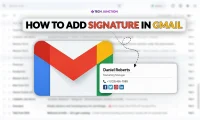

First impressions matter, and if you’re professional world, you have no choice. We send emails on a daily basis to that dream company recruiter, to a potential business partner and for various other reasons. But did you ever think about how emails are perceived? Most people send their emails with nothing but their first name at the bottom. No, you’re not going to convince someone with just this; adding a signature is the bare minimum, but it definitely brings an impact. Don’t know where to start? Then you’re on the right page. In this blog, you will learn a step-by-step guide on how to add signature in Gmail easily.
A Gmail signature is a block of text (sometimes an image) that automatically appears at the end of your emails. Consider it as your digital business card, always attached, always working for you.
A good signature speaks about you and makes your word feel more powerful. Imagine someone sending an email, claiming so much and with nothing to speak for their credibility. A signature on email does that, it builds your identity, makes it easy for people to reach you, and lastly, it portrays you as someone professional in the field.
Not sure where to start? You don’t have to build your signature from scratch. Several online signature generators like HubSpot Email Signature Generator, MySignature, and Newoldstamp give you ready-made, professionally designed HTML signatures in minutes. Just fill in your details, pick a template, copy the generated signature, and paste it directly into Gmail’s signature editor; it preserves the formatting automatically.
Adding a signature in Gmail is pretty easy when you know where to look. We’ve detailed steps with snapshots to do it the right way for both desktop and mobile devices.
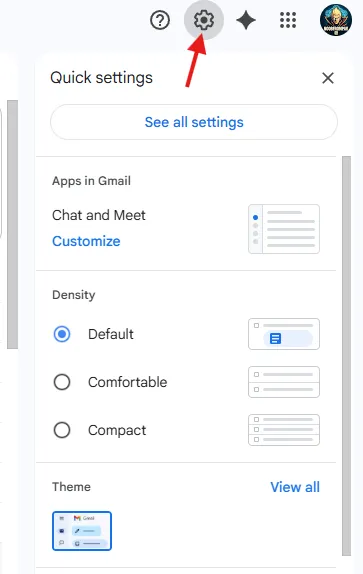
Here’s how to add an email signature in Gmail on PC (web browser).
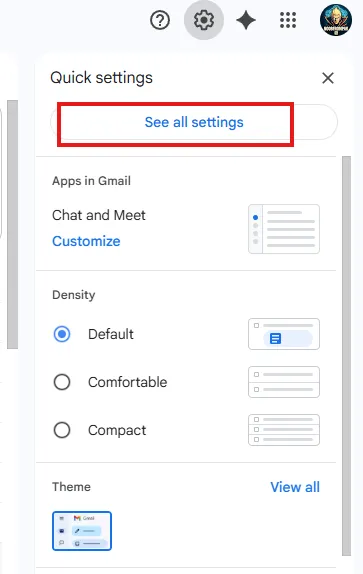
2. Click on “see all settings”:
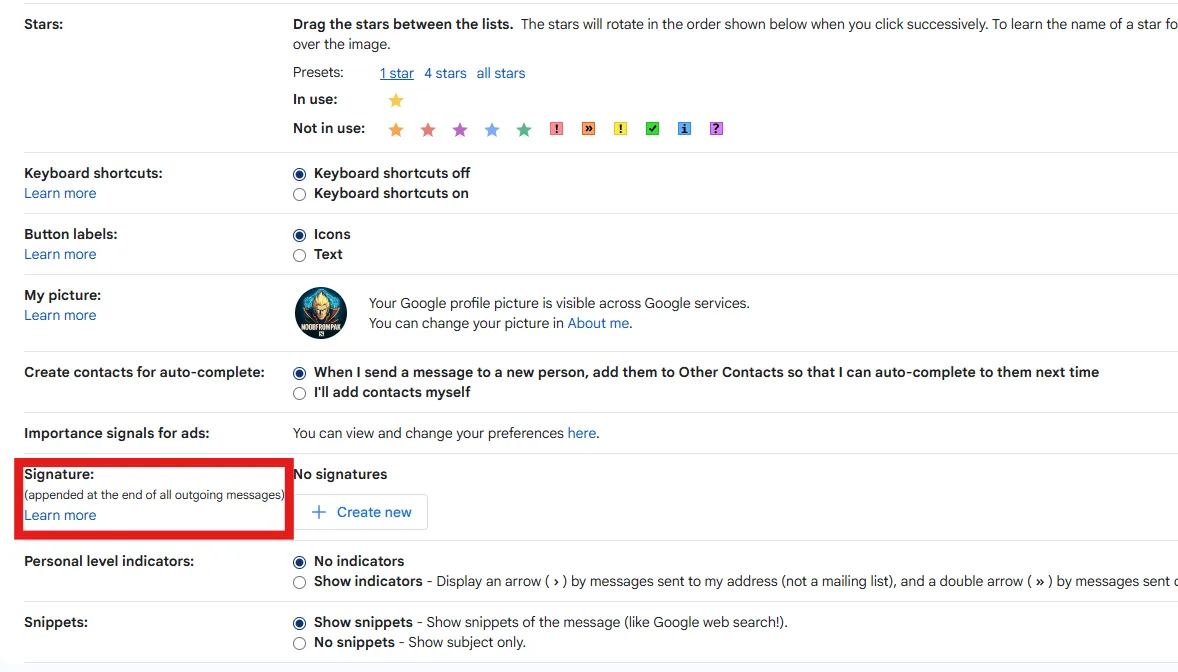
3. You’ll land in the general tab, scroll down until you see the “signature” option:
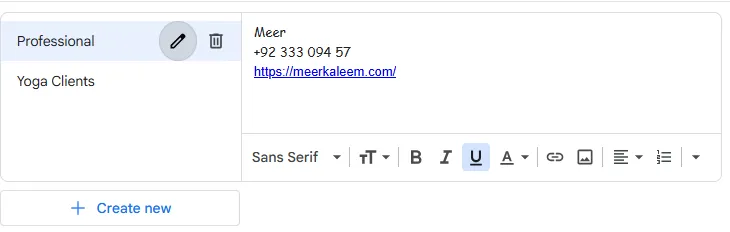
4. Click “Create new”, give your signature a name (this isn’t your signature, this is for switching between signatures, name it like “Professional” or “Work”)
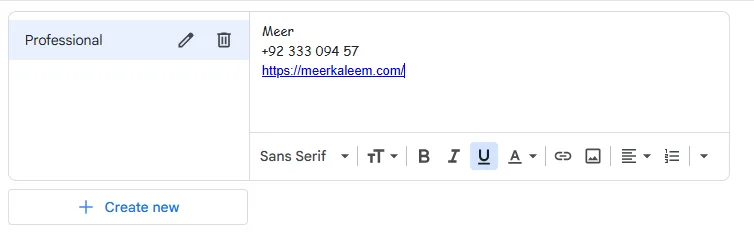
5. Type in your details like your name, website and phone like this:
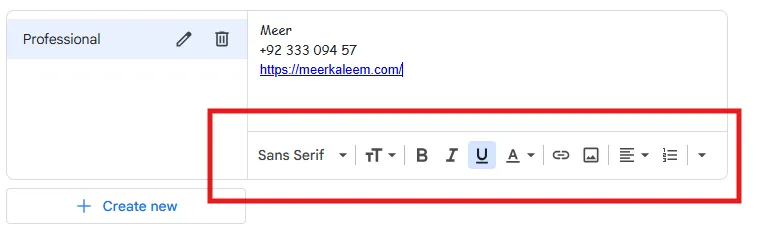
6. You can also use the formatting in Gmail signature settings:
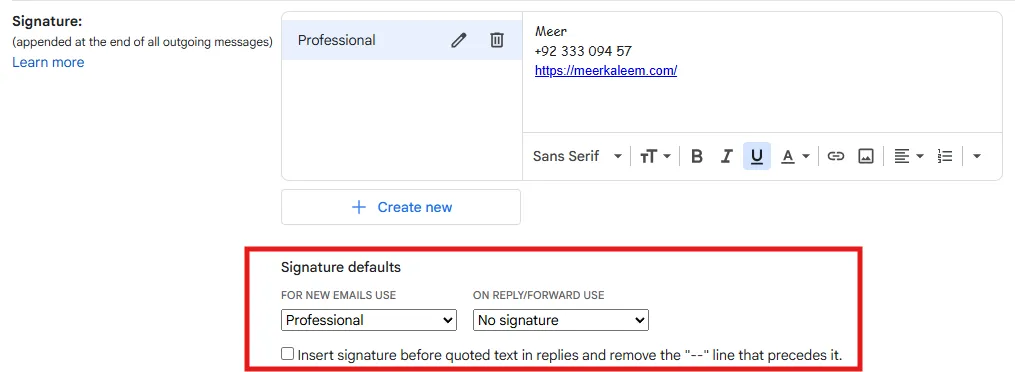
7. Once you’re done, make sure you select to use your new signature in your emails from “signature defaults:
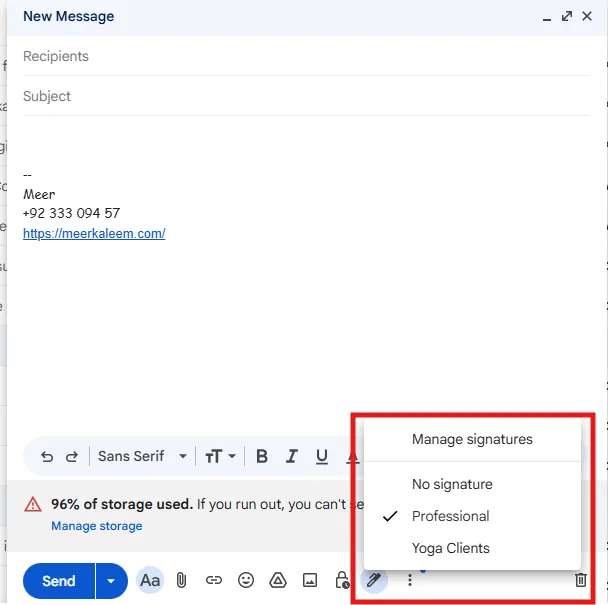
8. That’s it, you’re done, you’ll have “signature” in your emails now.
We all like to send emails on the go, and the good news is that you can adjust your signature even through phone. Follow these steps add an email signature on Gmail using Android or iPhone.
On Android:
On iPhone (iOS):
Keep your mobile signature short and simple since formatting isn’t supported. Just your name, title, and a phone number are usually enough.
Google Gmail offers something cool, and that’s: you can create multiple signatures and change signatures on Gmail based on the email context you’re sending. Follow the same steps we discussed for adding the signature for the first time. You can follow this guide to update your email signature in Gmail or create a different one.
Updating/modifying your existing signature is pretty easy, just head into the settings and find the “signature” section:
Select the signature you want to update and then hit “save changes” at the bottom of the page, and you’re done.
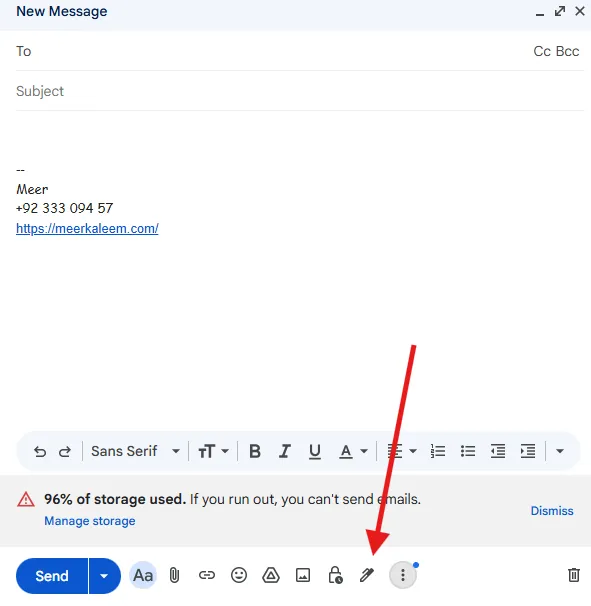
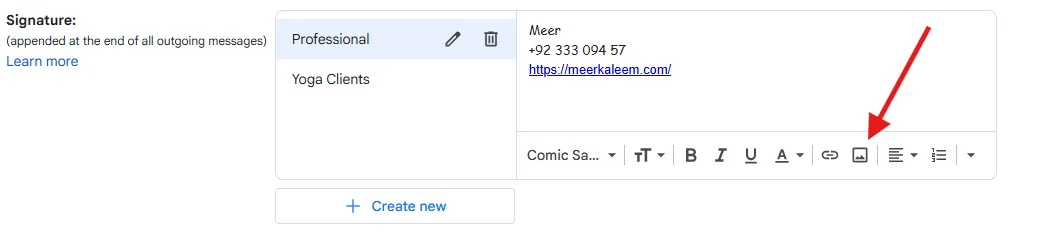
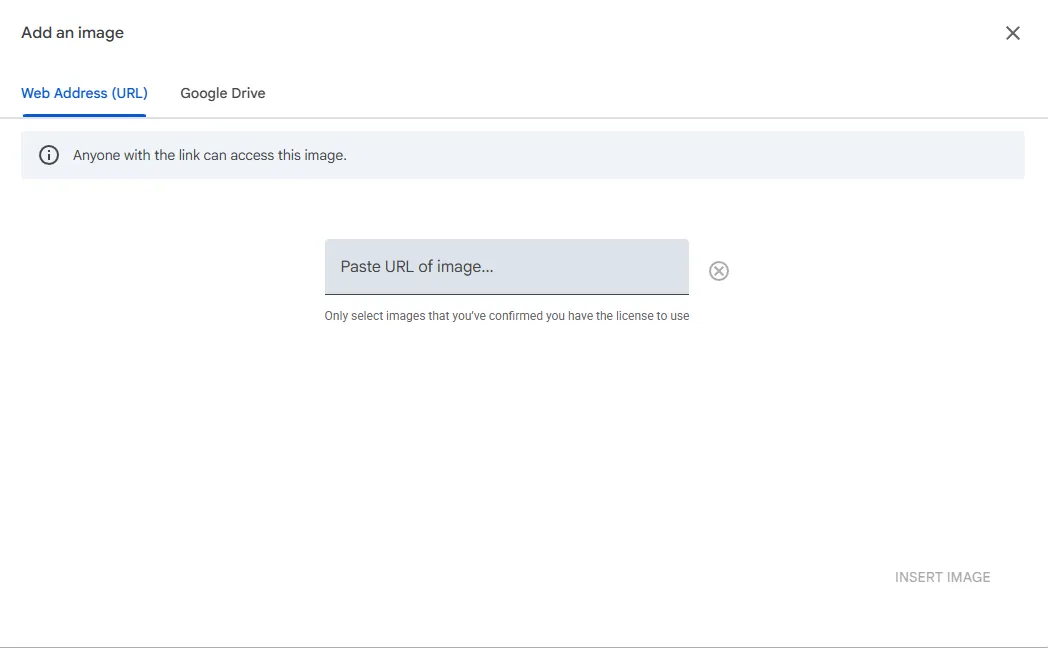
Now, for some of us, just the name of your company or even yourself isn’t enough. To make it look even more polished, we can also add a photo to the Gmail signature. Follow these steps to do it:
Despite being a small addition that’s already there in your settings and just needs to be enabled, signatures actually leave a lasting impression. It shows your company or your individual profile as someone experienced and professional in the industry. It takes less than 10 minutes to add a signature in Gmail. If you don’t have your logo or visuals yet, a name with a phone number still does the thing. Set it up today and win more clients and business with just a small yet impactful addition.
Go to Gmail Settings, scroll to the Signature section, create a new signature, and save your changes.
Yes, Gmail allows you to insert images such as logos or profile pictures directly into your signature.
You can create multiple signatures in Gmail settings and choose a default signature for new emails and replies.
Your Gmail signature may not appear if it is not set as the default for new emails or replies in the settings.
Yes, you can add a simple text signature in the Gmail mobile app by going to the app’s settings menu.
The Tech Junction is the ultimate hub for all things technology. Whether you’re a tech enthusiast or simply curious about the ever-evolving world of technology, this is your go-to portal.
Shopify Plus migration explained: when to move, what to prepare, and how...
Discover the top B2B marketing strategies for 2026. From AI-powered personalization to...
If you’re a brand or a business and your offers still say...
Discover the best Facebook analytics tools for 2026. Track reach, engagement, ads,...